

[layout] can arrange it differently, for example beside a large picture. Pages rise in as they replace each other. This page describes every page and state you can meet, and which settings change them.
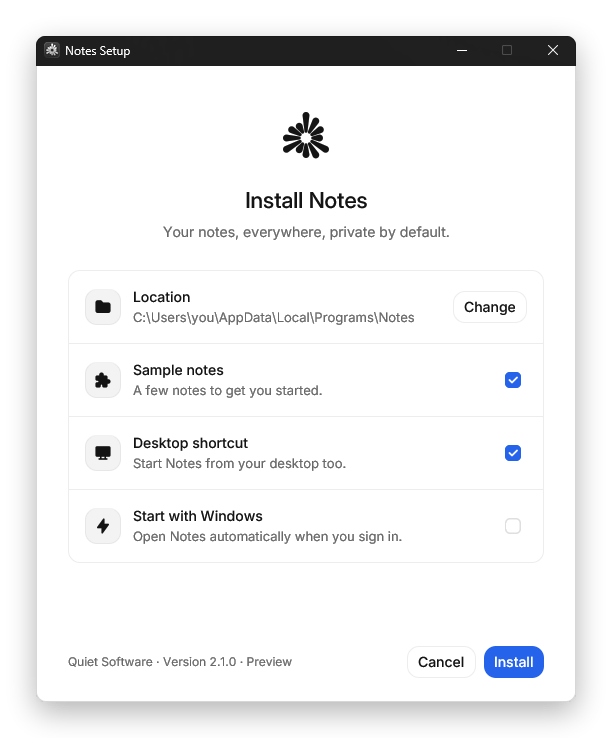
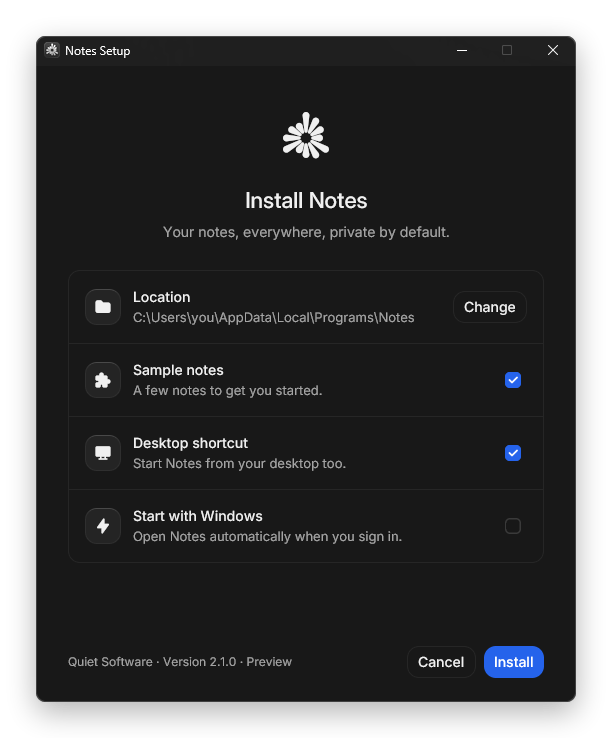
The first page of a fresh install, in light and dark mode.
The pages in order
Requirements come first, then the license, then the ready page.
The license page
The license sits in a card that scrolls smoothly and has a scrollbar along its right edge. Drag the bar, or click the empty track to move a page at a time. The text can be selected and copied: drag over it, double-click a word, triple-click a paragraph, or press Ctrl+A to select all and Ctrl+C to copy. Page Up, Page Down, Home and End scroll the card. Nothing is redrawn while the page is still, so a long license stays light on the processor and memory.The first page changes with what is on the computer
When the same version is installed, the page also shows a Repair button next to Reinstall. Repair checks every installed file against the SHA-256 in the setup file, writes back the ones that are missing or changed, and redoes shortcuts and registration with the options the app was installed with. Nothing else in the folder and no user data is touched. It is the window’s version of
--silent --repair.
On an update the location row is fixed: updates always stay where they are. Every one of these texts can be replaced in [text].
The removal window
The uninstaller shows its own pages: “Remove My App”, an unticked Also delete my data box when[uninstall] data is set, progress, and a last page that says whether data was deleted or kept. A feedback link (“Tell us why”) appears when uninstall.feedback_url is set. See The uninstaller and your users’ data.
When the app is still open
If the app is running, setup says so and does not replace files in use. The error page offers Try again, and a Close and continue button that asks the app to close the way Windows Update does. It may ask to save first. Nothing is killed. If the app will not close, the window says so.Errors
Errors are human sentences with a way forward. The most common ones have their own texts: the app is still open, a file is in use, another setup is running, the disk is full (with the needed and free size) and access was denied. “Access is denied” is reported as a file in use only while a running program really holds the file, which setup checks by trying to open it for writing. Otherwise the message names the file and gives Windows’ own explanation (a read-only file, a permission, protection software), and the log records the raw error code. The rarer ones, such as a damaged setup file or a failed download, have texts too. The full list is in[text].
Cancelling
While an install or update unpacks its files, the working page has a Cancel button (Esc does the same). Until the files are moved into place nothing of the earlier version has been touched, so cancelling deletes what was unpacked and ends setup, leaving the folder as it was. Once the files start moving into place, which is the all-or-nothing step, the button is gone and the window cannot be closed until it is done. Removing an app cannot be cancelled. A setup that was killed instead (Task Manager, a power cut) leaves its unpacked files as*.bach-new next to their targets; the next run of the same setup file removes them.
Support info
The failed page has a Save support info button. It writes one text file,<app id>-support.txt, to the user’s desktop and shows it in Explorer. The file holds the app’s name, version and id, Bach’s version, the Windows build, the processor type, whether setup runs as administrator, the install folder, the free space on that drive, the sentence the window showed and setup’s log. It holds none of the app’s files and no access key, and the user’s name and profile folder are replaced (%USERPROFILE% and <user>). Nothing is sent anywhere: the user decides whether to attach the file to a message to you. If the file can’t be written, the button says so. The three texts are support_save, support_saved and support_failed in [text].
Choices on the first page
Rows of choices are whole click targets. Clicking anywhere on a row ticks or unticks its box, and a control inside a row never counts a click twice. See Choices and components.Using the keyboard
The window works without a mouse:
A focus ring only shows once the keyboard is used, like the web’s
:focus-visible, so mouse users never see one.
In a Windows contrast theme (Settings › Accessibility › Contrast themes), edges, checkbox outlines, focus rings and secondary text turn to the full text colour, so nothing depends on a faint tint. With “Show animations in Windows” off, the window’s motion holds still.
Look and feel
- The window wears one of 14 built-in styles (
installer.style, Bach’s own by default), and[style]changes its fonts, colours, corners and background. - It is arranged by one of 10 built-in layouts (
[layout] preset, the classic column by default), and[layout]changes its size, panel, spacing, buttons and animation. - The window follows Windows’ light or dark setting live, unless
installer.themefixes it. A few styles, such asarcadeandterminal, start dark whenthemeisn’t set. - Your
accentreplaces only the primary colour: buttons, the progress bar and ticked boxes. - Text is set in the style’s font, Inter in Bach’s own style. Long app names and long install paths wrap instead of clipping.
- By default setup never asks for administrator rights, so there is no UAC prompt. An app with
installer.scope = "machine"asks Windows once, before this window opens (see machine-wide installs).